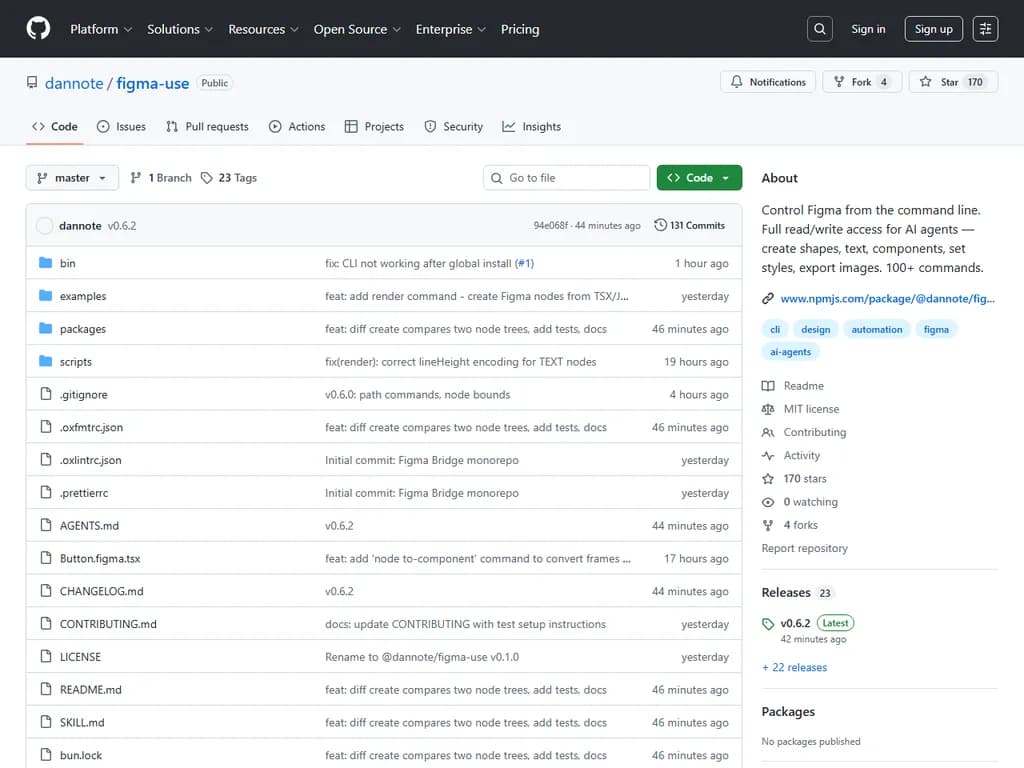
2026/01/18 14:55
**Show HN:** 「Figma‑use」 – AI エージェント向けに Figma を操作する CLI
RSS: https://news.ycombinator.com/rss
要約▶
Japanese Translation:
## 要約

`figma-use` は、標準の JSON スキーマと MCP プロトコルをバイパスし、JSX を直接 Figma ノードにレンダリングするコマンドラインインターフェースです。
導入は簡単です:
bun install -g @dannote/figma-use figma-use plugin install # 対応する Figma プラグインを追加 figma-use proxy # 軽量プロキシサーバーを起動
### コア CLI コマンド

`render`, `create`, `set`, `node`, `find`, `export`, `page`, `variable`, `style`, `font`, `comment`, `version`, `me`, `file info`, `diff`, `eval`.

典型的なレンダリング例:

```bash
echo '<Frame style={{padding:24, backgroundColor:"#3B82F6", borderRadius:12}}><Text style={{fontSize:18, color:"#FFF"}}>Hello Figma</Text></Frame>' | figma-use render --stdin
対応要素
FrameRectangleEllipseTextLineStarPolygonVectorGroupスタイルプロパティ(抜粋)
- レイアウト: flexDirection, justifyContent, alignItems, gap, padding
- サイズと位置: width, height, x, y
- 外観: backgroundColor, borderColor, borderWidth, borderRadius, opacity
- テキスト: fontSize, fontFamily, fontWeight, color, textAlign
再利用可能なコンポーネントと変数
再利用 UI パーツには
defineComponentdefineComponentSetdefineVarsトークン効率とパフォーマンス
CLI で作成されたフレームは約 47 トークンを使用し、完全な MCP JSON ペイロードでは約 200 トークンが必要です。プロキシは Figma の内部マルチプレイヤープロトコルを利用しており、プラグイン API より約 100 倍高速に動作します(ただし Figma がそのプロトコルを変更した場合には壊れる可能性があります)。
実験的差分機能
figma-use diff--validate--forceAI 統合とライセンス
SKILL.md~/.claude/skills/figma-use/本文
figma‑use – Figma 用 CLI
LLM や AI エージェントが JSX または簡易コマンドで Figma デザインを作成・変更・照会できる軽量インターフェースです。
なぜ CLI なのか(MCP の代わりに)
- トークン効率 – 同じ操作でも 47 トークン対約200トークン。
- JSON スキーマ不要 – LLM が生成できる JSX だけで済みます。
- 高速 – Figma 内部のマルチプレイヤープロトコル(プラグイン API より約100倍速)を利用。
クイックデモ
echo '<Frame style={{padding: 24, backgroundColor: "#3B82F6", borderRadius: 12}}>
  <Text style={{fontSize: 18, color: "#FFF"}}>Hello Figma</Text>
</Frame>' | figma-use render --stdin
インストール
bun install -g @dannote/figma-use          # グローバル CLI
figma-use plugin install                    # プラグインをインストール(Figma を先に終了)
figma-use proxy                             # プロキシサーバー起動
セットアップ
- デバッグポートで Figma を起動
figma --remote-debugging-port=9222 - プロキシを起動
figma-use proxy
Figma → プラグイン → 開発 → Figma Use で Render: JSX → Figma (Experimental) を選択。
基本的な使い方
| 入力 | コマンド |
|---|---|
| stdin | `echo '<Frame ... />' |
| ファイル | |
| プロパティ付き | |
対応要素とスタイルプロパティ
要素
- Frame, Rectangle, Ellipse, Text, Line, Star, Polygon, Vector, Group
レイアウト
flexDirection: 'row' | 'column'
justifyContent: 'flex-start' | 'center' | 'flex-end' | 'space-evenly'
alignItems:    'flex-start' | 'center' | 'flex-end' | 'stretch'
gap: number
padding: number
paddingTop/Right/Bottom/Left: number
サイズ & 位置
width, height, x, y
外観
backgroundColor: string   // hex
borderColor:    string
borderWidth:    number
borderRadius:   number
opacity:        number
テキスト
fontSize:      number
fontFamily:    string
fontWeight:    'normal' | 'bold' | '100'-'900'
color:         string
textAlign:     'left' | 'center' | 'right'
再利用可能なコンポーネント
import { defineComponent, Frame, Text } from '@dannote/figma-use/render'

const Card = defineComponent('Card',
  <Frame style={{ padding: 24, backgroundColor: '#FFF', borderRadius: 12 }}>
    <Text style={{ fontSize: 18, color: '#000' }}>Card</Text>
  </Frame>
)

export default () => (
  <Frame style={{ gap: 16, flexDirection: 'row' }}>
    <Card />   {/* コンポーネント */}
    <Card />   {/* インスタンス */}
    <Card />
  </Frame>
)
バリアント
import { defineComponentSet, Frame, Text } from '@dannote/figma-use/render'

const Button = defineComponentSet('Button', {
  variant: ['Primary', 'Secondary'] as const,
  size:   ['Small', 'Large'] as const,
}, ({ variant, size }) => (
  <Frame style={{
    padding: size === 'Large' ? 16 : 8,
    backgroundColor: variant === 'Primary' ? '#3B82F6' : '#E5E7EB',
    borderRadius: 8,
  }}>
    <Text style={{ color: variant === 'Primary' ? '#FFF' : '#111' }}>
      {variant} {size}
    </Text>
  </Frame>
))

export default () => (
  <Frame style={{ gap: 16, flexDirection: 'column' }}>
    <Button variant="Primary" size="Large" />
    <Button variant="Secondary" size="Small" />
  </Frame>
)
変数バインディング
import { defineVars, Frame, Text } from '@dannote/figma-use/render'

const colors = defineVars({
  bg:   { name: 'Colors/Gray/50', value: '#F8FAFC' },
  text:{ name: 'Colors/Gray/900', value: '#0F172A' },
})

export default () => (
  <Frame style={{ backgroundColor: colors.bg }}>
    <Text style={{ color: colors.text }}>Bound to variables</Text>
  </Frame>
)
CLI コマンド
Render
複雑レイアウトに最適。
figma-use render [--stdin] [file]
Create
| コマンド | 説明 |
|---|---|
| Frame |
| Rectangle |
| Ellipse |
| Text |
| Line |
| Component |
| Instance |
Modify
figma-use set fill <id> "#FF0000"
figma-use set stroke <id> "#000" --weight 2
figma-use set radius <id> 12
figma-use set opacity <id> 0.5
figma-use set text <id> "New text"
figma-use set font <id> --family "Inter" --style "Bold" --size 20
figma-use set layout <id> --mode VERTICAL --gap 12 --padding 16
figma-use set effect <id> --type DROP_SHADOW --radius 10 --color "#00000040"
Query
figma-use node get <id>
figma-use node tree
figma-use node children <id>
figma-use node bounds <id>
figma-use find --name "Button"
figma-use find --type FRAME
figma-use selection get
Vector Paths
figma-use create vector --x 0 --y 0 --path "M 0 0 L 100 50 L 0 100 Z" --fill "#F00"
figma-use path get <id>
figma-use path set <id> "M 0 0 ..."
figma-use path move <id> --dx 10 --dy -5
figma-use path scale <id> --factor 1.5
figma-use path flip <id> --axis x
Export
figma-use export node <id> --output design.png
figma-use export screenshot --output viewport.png
figma-use export selection --output selection.png
Navigation
figma-use page list
figma-use page set "Page Name"
figma-use viewport zoom-to-fit <ids...>
Variables & Styles
figma-use variable list
figma-use variable create "Primary" --collection <id> --type COLOR --value "#3B82F6"
figma-use style list
figma-use style create-paint "Brand/Primary" --color "#E11D48"
Fonts
figma-use font list
figma-use font list --family Roboto
Comments & History
figma-use comment list
figma-use comment add "Review this"
figma-use comment add "Here" --x 200 --y 100
figma-use comment delete <id>
figma-use version list
figma-use me
figma-use file info
Diff (Experimental)
figma-use diff create --from 123:456 --to 789:012
figma-use diff apply patch.diff          # ファイルから適用
figma-use diff apply --stdin < patch.diff   # stdin から適用
figma-use diff apply patch.diff --dry-run
figma-use diff apply patch.diff --force
Escape Hatch
figma-use eval "return figma.currentPage.name"
figma-use eval "figma.createRectangle().resize(100, 100)"
AI エージェント向け
- SKILL.md – Claude Code、Cursor 等で即使用可能なスキルファイル。
に配置するか、プロジェクトの~/.claude/skills/figma-use
に追加。AGENTS.md
mkdir -p ~/.claude/skills/figma-use
cp node_modules/@dannote/figma-use/SKILL.md ~/.claude/skills/figma-use/
MCP サーバー(任意)
MCP クライアントだけを持っている場合はエンドポイントを公開:
figma-use mcp # クライアント用設定スニペットを出力
Endpoint:
http://localhost:38451/mcpアーキテクチャ
AI Agent ──> figma‑use CLI ──> Plugin (WebSocket) ──> Figma Server
                 │                                 ▲
                 └─ MCP endpoint (JSON-RPC) ----┘
- CLI → プラグイン API への完全アクセス。
- MCP → JSON‑RPC、CLI と同等。
- Render → マルチプレイヤープロトコル(約100倍高速)。
ライセンス
MIT © 2024 Dannote / Figma Use